
- Please select the card you wish to join
-
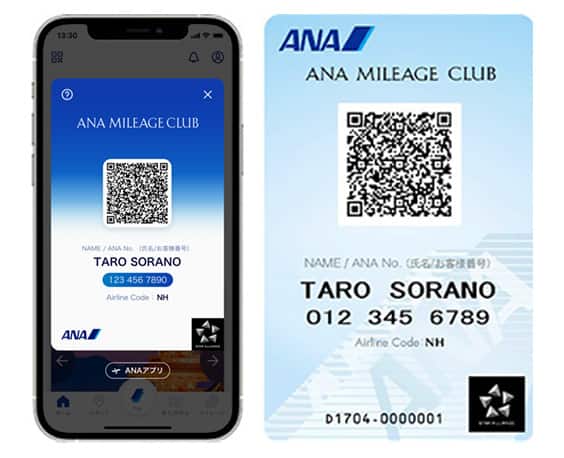
Get your digital card immediately
No enrollment or annual fees
ANA Mileage Club Card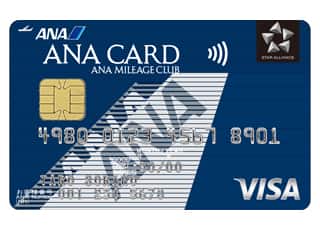
Earn more miles for your money
With credit function
ANA Card
The iPhone Wallet app
You can now board ANA domestic and international routes with Apple's iPhone (iOS 9.0 and above) Wallet app.Users can experience seamless travel with Wallet!

The iPhone Wallet app
Now available for ANA domestic and international routes!
What is Wallet?
Wallet is an app for the iPhone, Apple Watch, and iPod touch, and was developed by Apple as a way of keeping tickets, passes and membership cards organized.
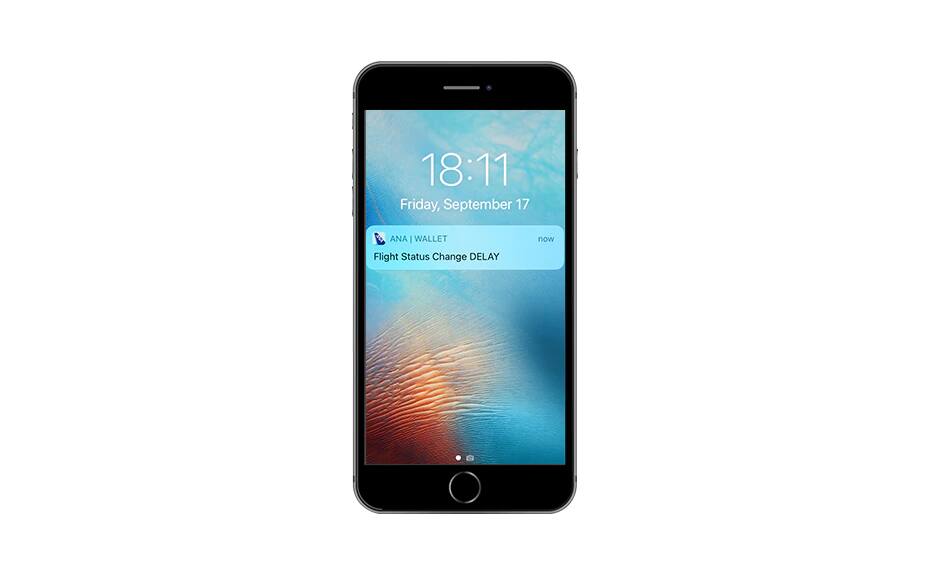
Those adding a pass will be notified by the Wallet app of any changes to their reserved flights, such as cancellations or delays.




-
*
Customers using devices installed with iOS 9.0 or above can use the Wallet app.
-
On devices installed with iOS 6.0 to 8.4.1, you can use the Passbook
-
Wallet cannot be used on the iPad.
-
Wallet is not available on Android™ devices.
-
Register for the pass: how to use it for boarding
-
STEP1
Register for Wallet through the Check your Check-in status screen shown below
-
STEP2
Register the obtained pass with the app
-
STEP3
Display the pass
Flight Status Notification
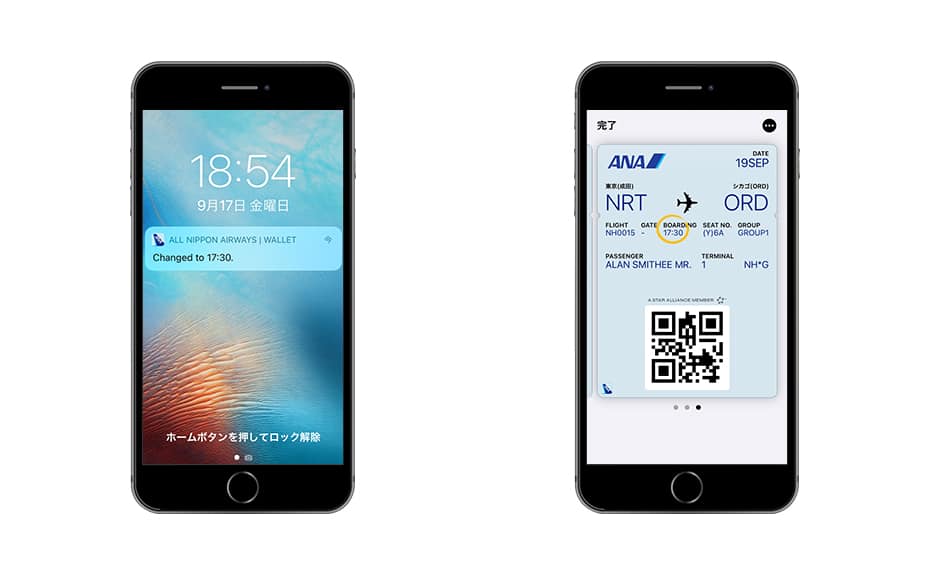
Passengers will be notified of flight cancellations through the pass.When you access the pass after receiving the notification, the change will be circled and the latest information will be displayed.
-
*
Applies only to ANA international routes registered through Wallet. Japan domestic flights that were checked in using Online Check-in with international flights are not eligible for Wallet notification.
-
*
The change will be circled only when accessing the pass from the notification.
Note
-
Wallet can be used on iPhone, Apple Watch, and iPod touch devices which support iOS 9.0 or higher.
-
Registration for the pass will need to be done per flight sector.For those holding 2 or more sectors, please register each sector separately.
-
The flight status notification will be delivered only if you are connected to the internet.Please note alerts may not be delivered at times due to reception or connectivity.
-
If you change your reservation (including seat assignments) after having obtained the pass, the changes will not be automatically reflected.To update the pass, you must pick it up again.
-
Tap the "・・・" icon on the upper right to check the boarding information.
-
The pass will not be automatically deleted after boarding.Please delete the pass manually.
-
The above image is representative of the "Wallet".
-
*
iPhone, Apple Watch, iPod touch, and Wallet/Passbook are registered trademarks of Apple Inc. in the United States and other countries.






Member Login
Information for Members Logging In
- Before proceeding to log in, please be sure to read and accept the section on the purpose of using personal information in the ANA Privacy Policy.
- Points to note when using your AMC account.
Auto-Login with Cookies
- However, you will need to re-enter your password as a form of verification when making reservations, requesting awards, registering/revising personal information, and using other members-only functions.
-
The confirmation screen will reappear after closing all browser windows even if you checked "Do not show this screen again."
Entry of One-Time Password
If you have not received your one-time password
If your one-time password does not come through, please check your settings for receiving it and then re-send it.
If you do not do anything on the screen for a certain amount of time, you will have to request another one-time password.
Select your desired destination email address.
Do you really want to log out?
- If you click "Log Out," you will be logged out even if you have selected "Save Login Status."
- Close all open browser windows if you want to quit your session without logging out.
-
The confirmation screen will reappear after closing all browser windows even if you checked "Do not show this screen again."

ANA Biz is a business travel arrangement service.

-
MILES
-
ANA SKY COINS
-
Premium Point / Point on ANA /
-
Reservations
-
MILES
-
MILES
-
Login
-
Support