
- Please select the card you wish to join
-
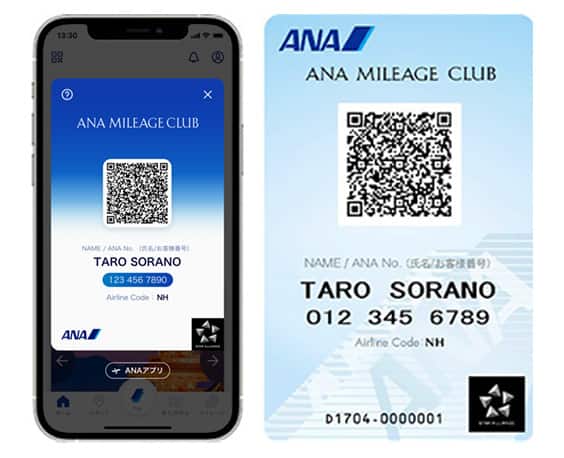
Get your digital card immediately
No enrollment or annual fees
ANA Mileage Club Card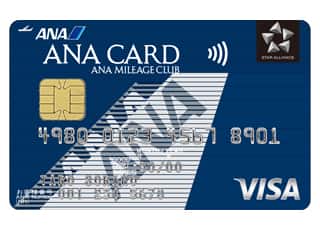
Earn more miles for your money
With credit function
ANA Card
How to Use Airport Access
Airport Access is available on the ANA website and the ANA app. On this page, you will find information on how to use this service after reserving your flight ticket.
-
*
All images are for illustrative purposes only and subject to change.
After Reserving Your Flight Tickets
On the ANA Website
If You Have Reserved a Domestic or International Flight Ticket
-
STEP 1
Reservation Details Screen
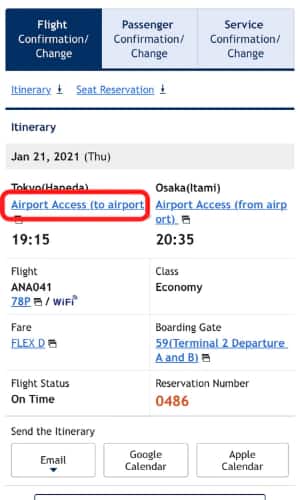
Press the Reservation Details button at the bottom of this screen, search for the relevant reservation, and then proceed to the Reservation Details screen.
If you select "Airport Access (to airport)", you will be shown information on how to get to the departure airport and board your flight. Alternatively, if you select "Airport Access (from airport)", you will be shown information on how to get to your final destination after disembarkation.
-
STEP 2
Airport Access Criteria Entry
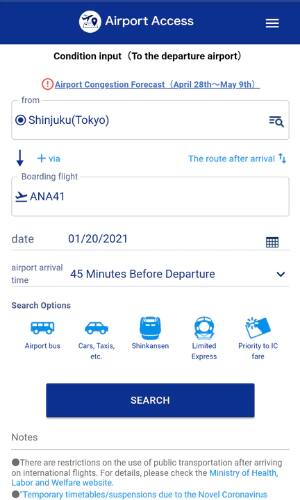
When selecting the Departure to Boarding Gate image, enter your departure location into the From field and select the time at which you would like to arrive at the airport. When selecting the Arrival Gate to Destination image, enter only your destination into the To field.
You can also switch from searching for departure-related route information to arrival-related route information and enter a transit location.
-
STEP 3
Airport Access Results
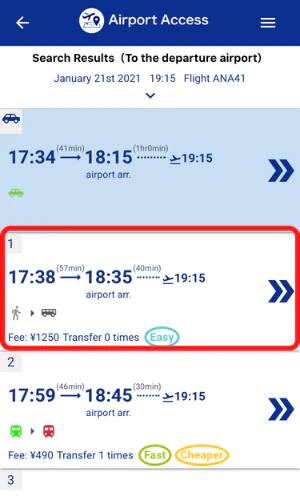
Several possible routes will be displayed. Select the route for which you would like to see more details.
-
STEP 4
Airport Access Result Details
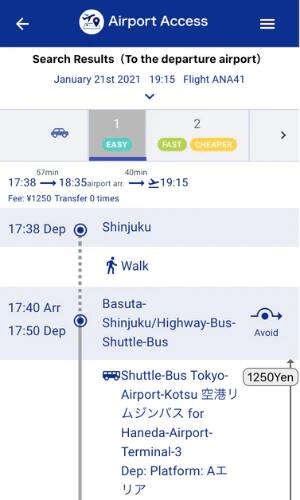
You can check your route based on your flight details.
-
*
For further details, please see Airport Access Search Results.
-
*
On the Official ANA App
If you have a reservation
-
STEP 1
ANA App MyBooking
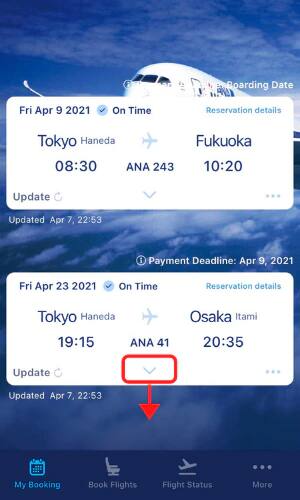
If your reservation card is closed, click the V mark to display the entirety of the card.
-
STEP 2
ANA App MyBooking
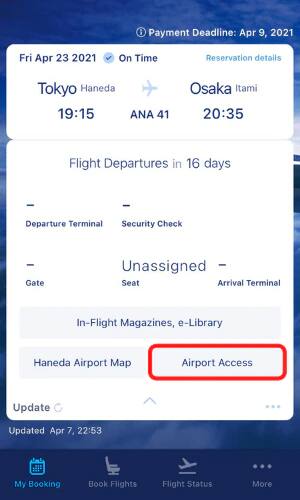
Select the Airport Access button displayed in the bottom right corner of the screen.
-
STEP 3
ANA App MyBooking
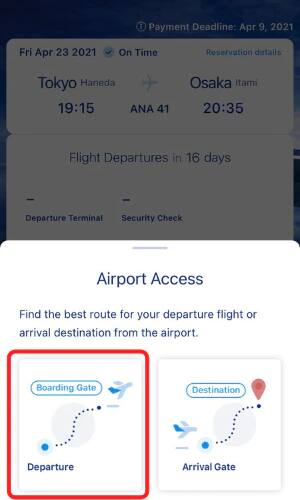
Select the route you would like to search for.
Select either the Departure to Boarding Gate image (to find out how to get to the departure airport and board your flight) or the Arrival Gate to Destination image (to find out how to get to your final destination after disembarkation). -
STEP 4
Airport Access Criteria Entry
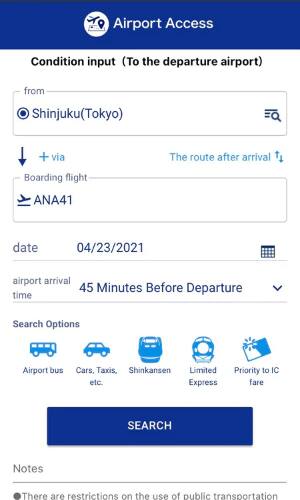
Airport Access' criteria entry screen will open.
From here onward, you will be required to perform the same procedures as those explained for the ANA Website under After Reserving Your Flight Tickets.
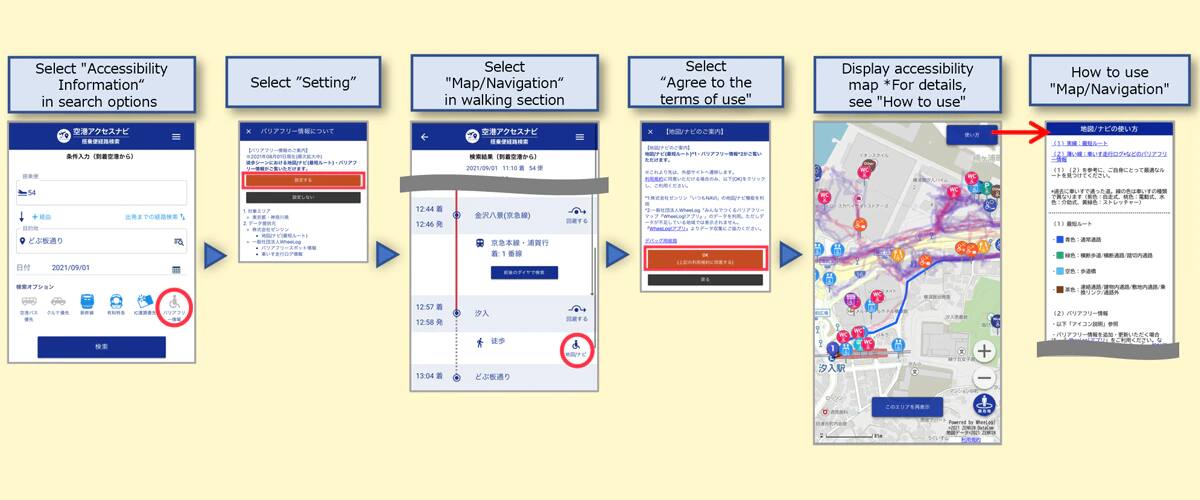
Addition of accessibility map/navigation functions for parts of journey on foot !
You can now display accessibility information based on the knowledge obtained through test runs for Universal MaaS -Toward a World Where No One Gives up on Traveling-(Japanese Text Only). It is now possible to view maps/navigation information (shortest route)*1 and accessibility information*2 for the outdoor parts of your journey on foot that are displayed within your route search results.
(Currently limited to Tokyo and Kanagawa prefectures; to be expanded in the future.) Further new functions will be added going forward.
-
*
1
This utilizes the map/route search functions on Itsumo NAVI API, a web service from ZENRIN Co., Ltd. and ZENRIN DataCom Co., Ltd.
-
*
2
This utilizes data from the WheeLog! app ("Accessibility maps created by you.") from WheeLog, a general incorporated association. However, information will not be displayed for areas where data is not available.
To add or update accessibility information, please use the WheeLog! app. Let's work together to collect accessibility information!

Search for Locations on the Map for Even Greater Convenience!
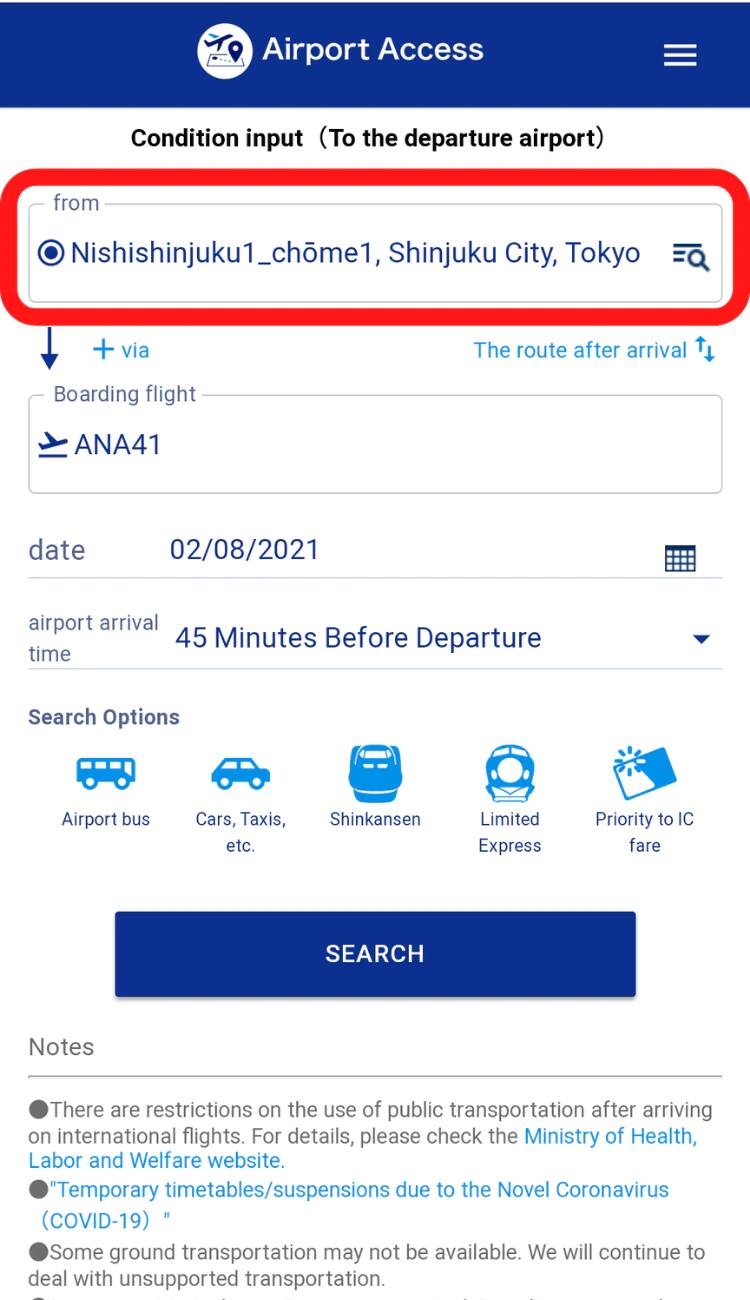
In addition to station and place names, you can now select more specific departure locations and destinations on the map.
Location Search Function on Map
Criteria Input Screen "Select on Map"
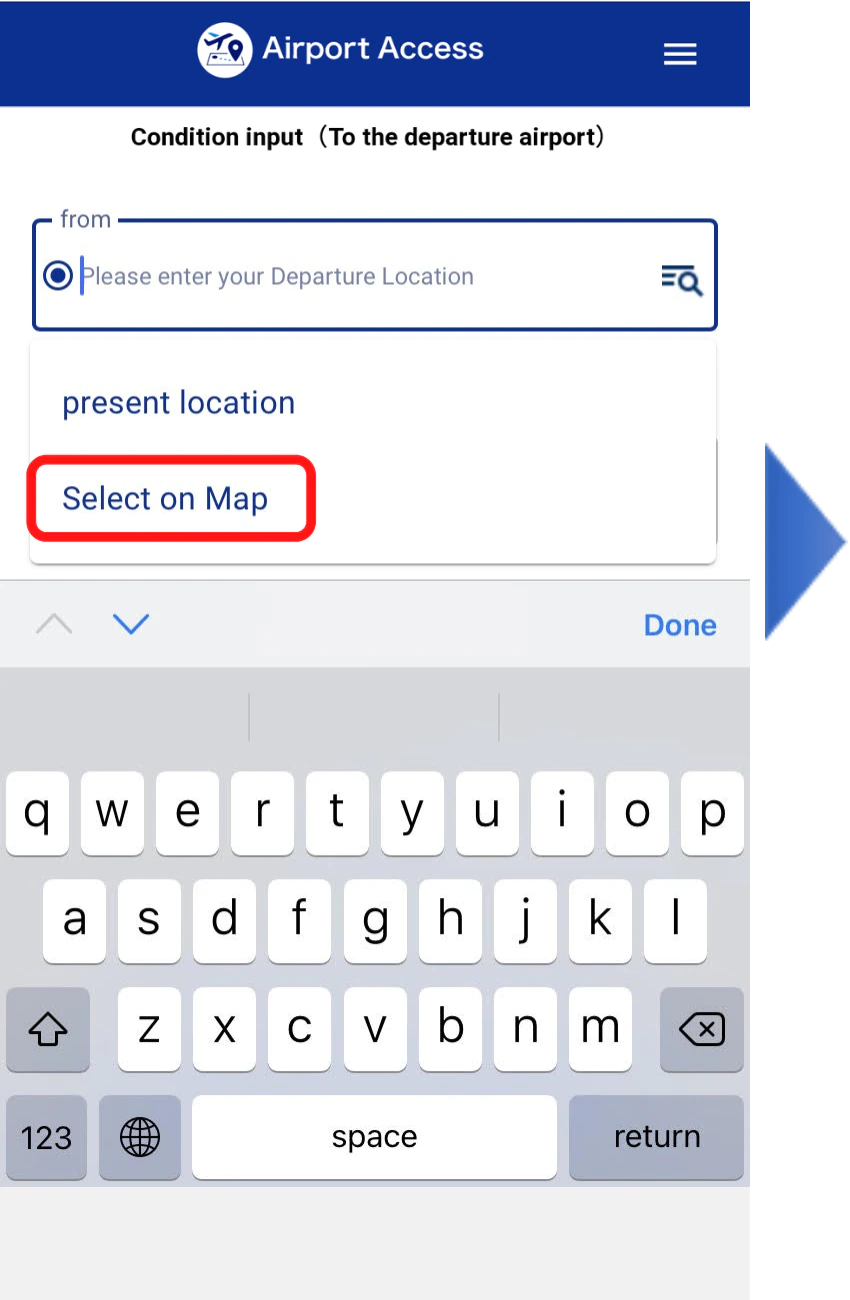
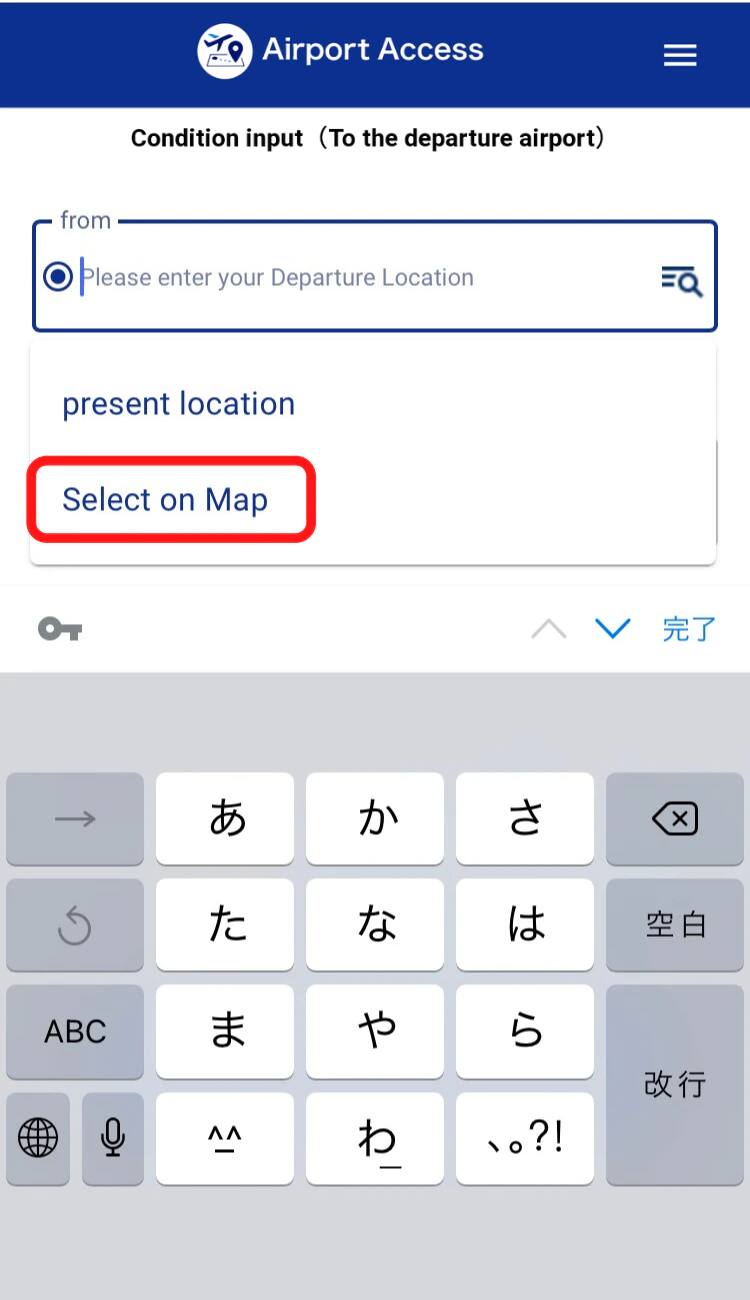
Move around Map to Select Your Preferred Location
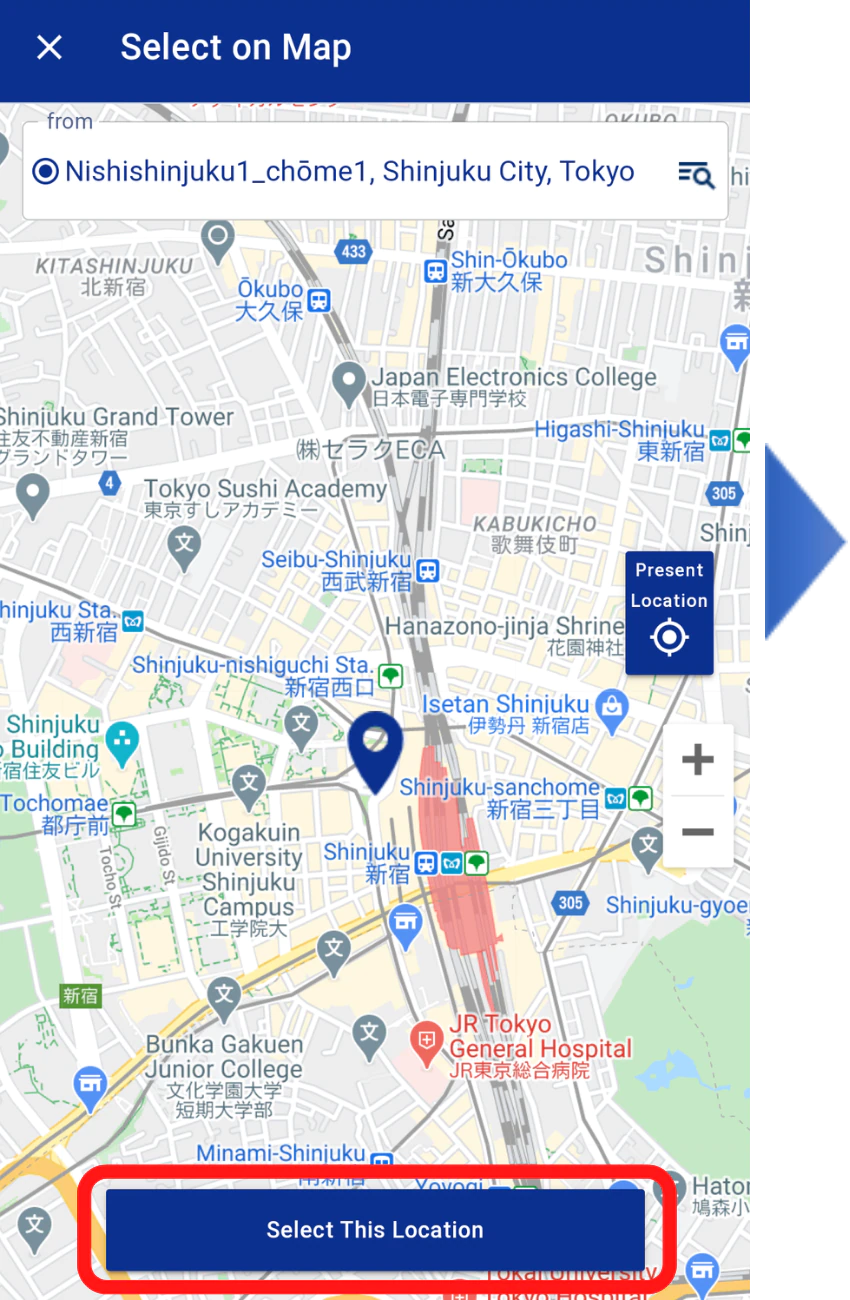
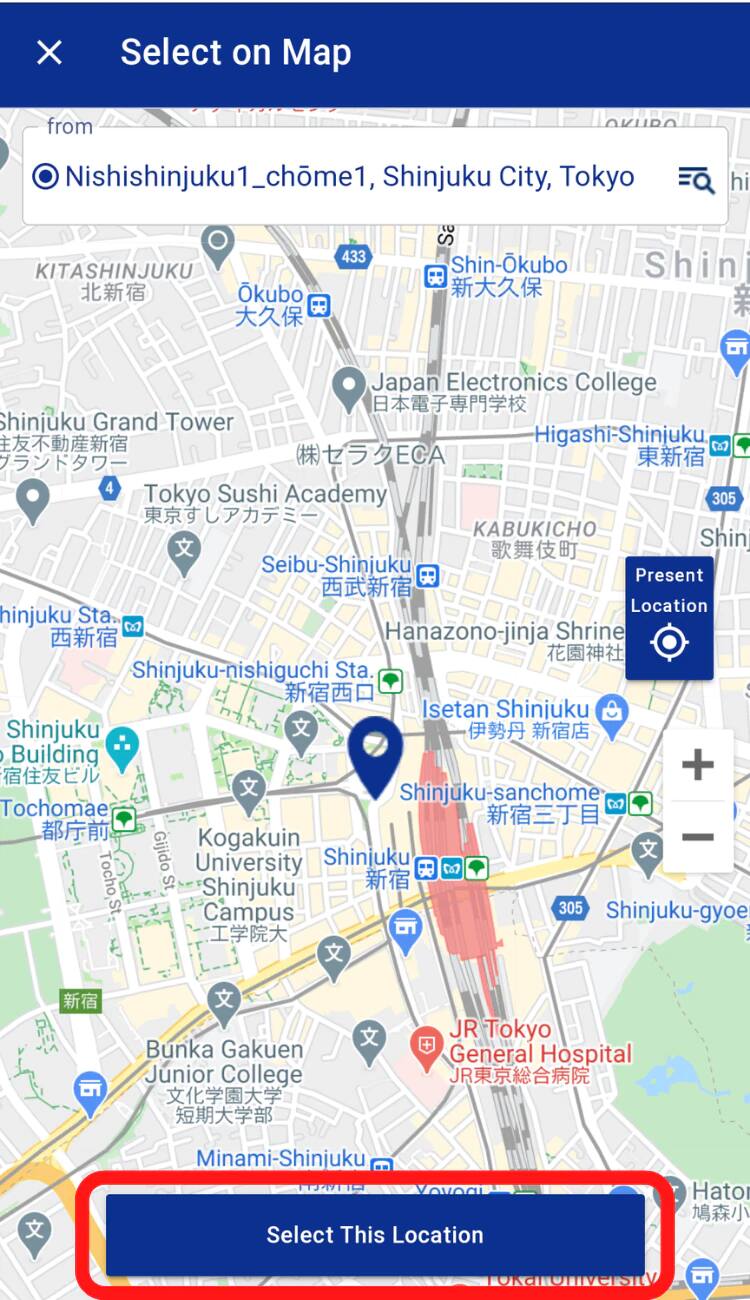
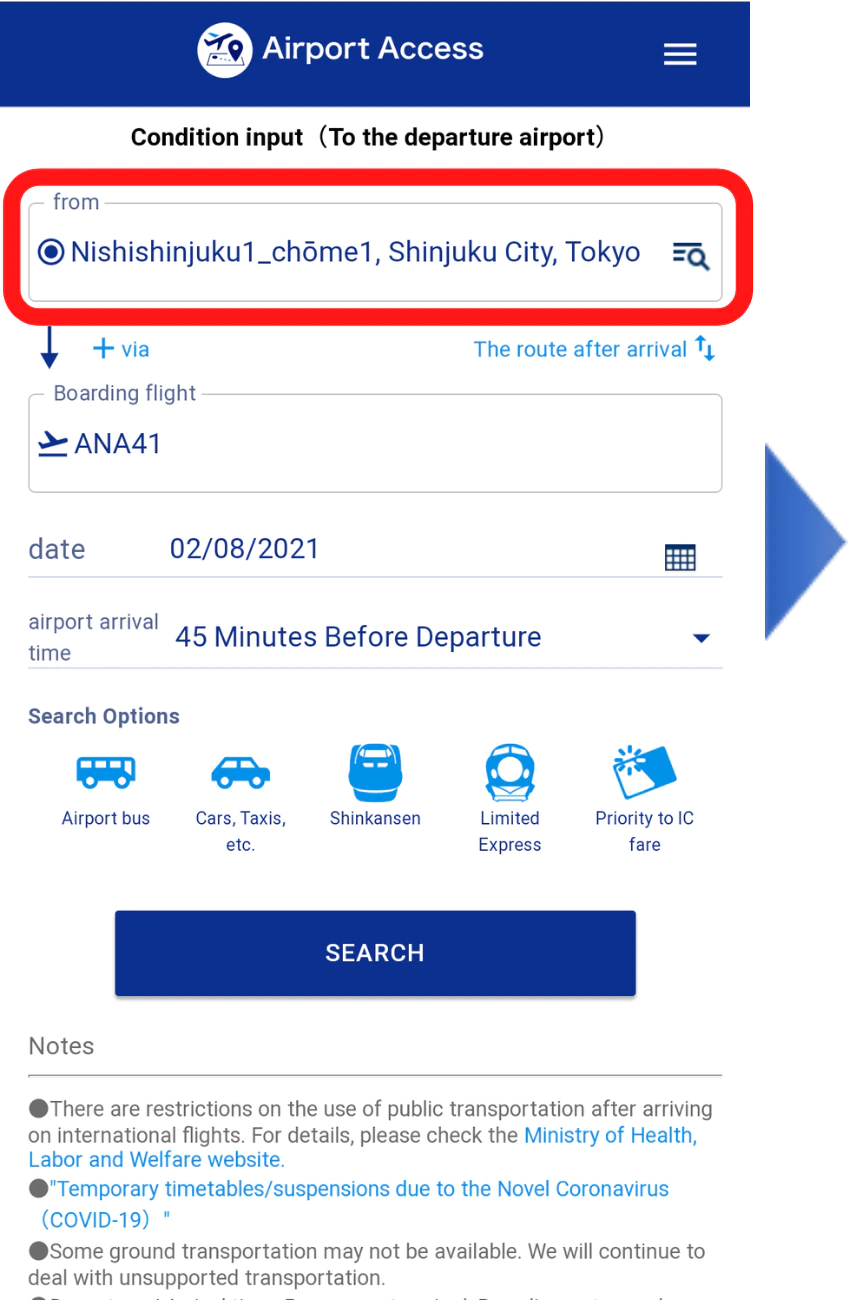
Criteria Input Screen The Selected Address Will Be Shown
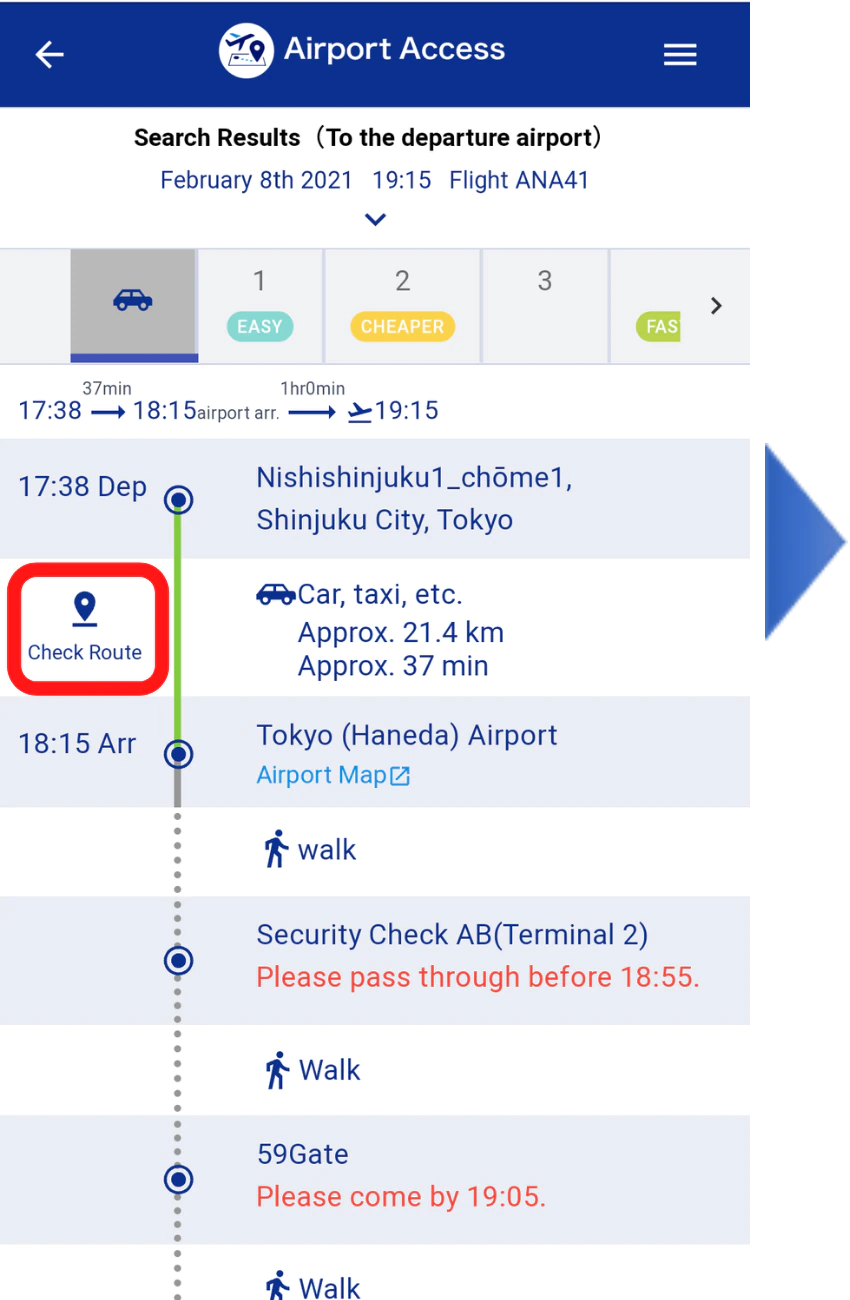
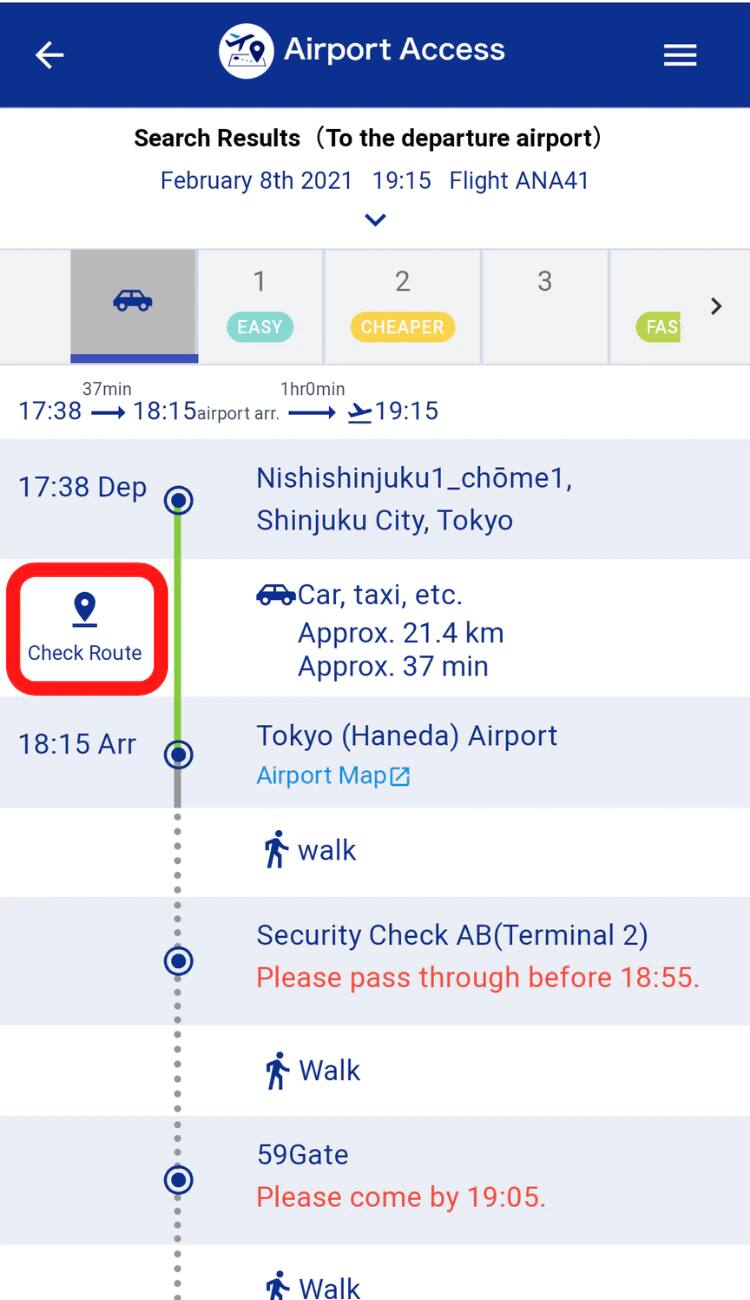
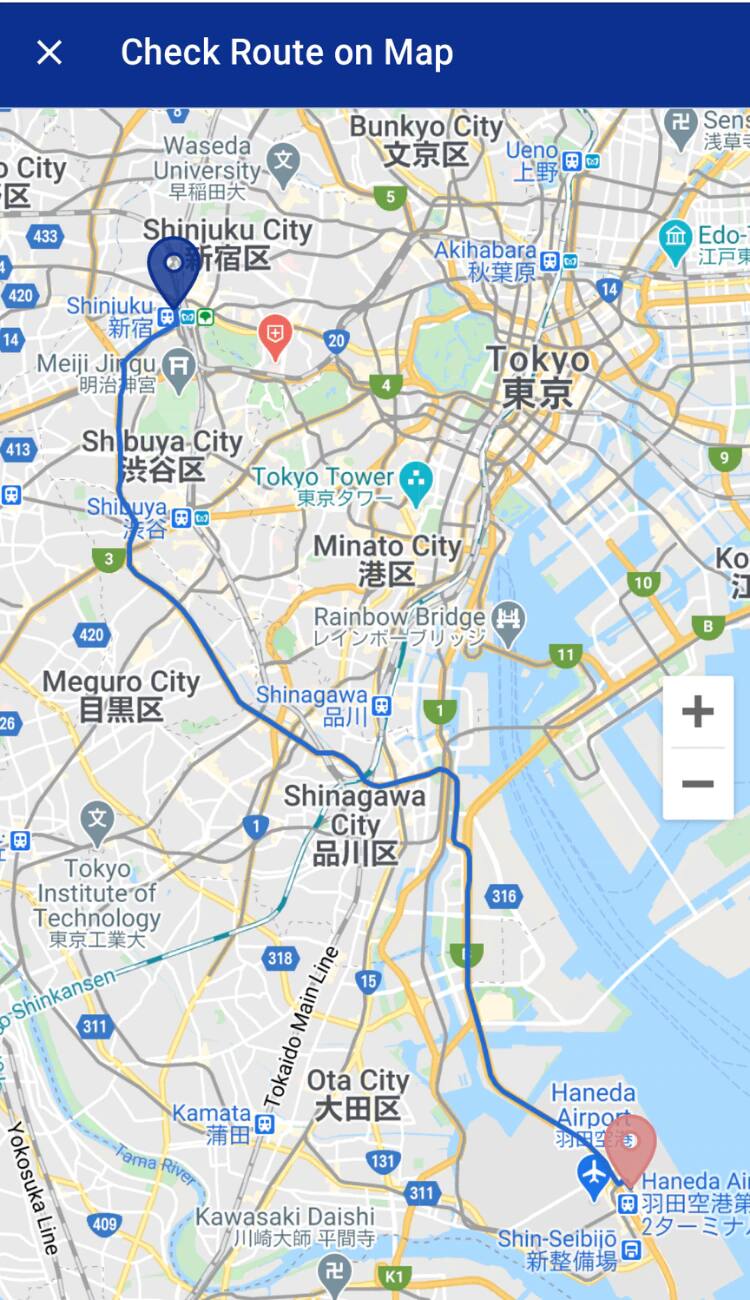
Result Details Screen Select "Check Route"
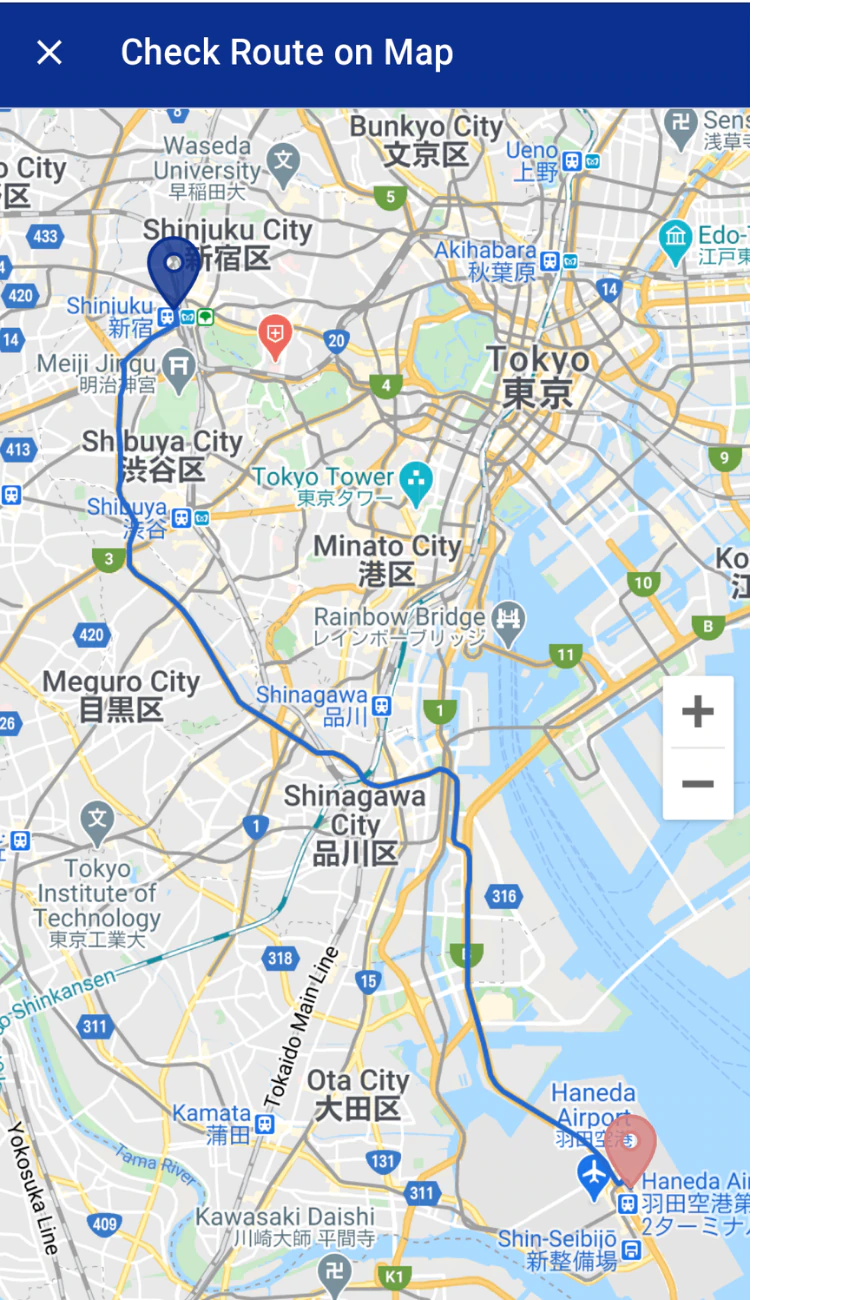
Display Route on the Map
-
*
All images are for illustrative purposes only and subject to change.
Airport Access Search Results
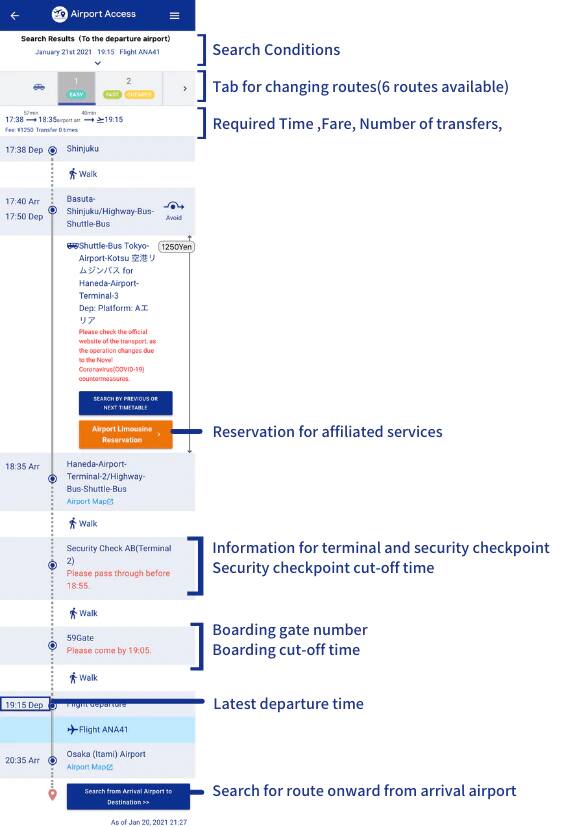
As well as information on how to travel to/from the airport in keeping with the scheduled departure/arrival time of your reserved flight, you can also confirm information such as the terminal, security checkpoint, airport map, boarding gate number, and flight status.
-
*
The information available will differ depending on your flight. Please also note that this information will only be available during certain times.
Up-to-Date Flight Status Display for ANA Flights
Japan Domestic Flights
Terminal number, up-to-date departure/arrival times, flight cancellation announcement, boarding gate, arrival exit (for Haneda and Fukuoka only), nearest security checkpoint (for Haneda only)
International Flights
Terminal number, up-to-date departure/arrival times, flight cancellation announcement
-
*
You can also check the status of railway services to see if there are any delays or similar disruptions.
Railway service status provided by: Rescue Now Co., Ltd.
Reservation and Payment of Partners' Services
The ground transportation and other services available for your route will be displayed in the search results.
You can click the reservation buttons/banners shown to seamlessly reserve and pay for these services.

-
*
This image of departure-related route search results is provided for illustrative purposes only.
Eligible Flights
Japan Domestic Flights
ANA-operated flights or codeshare flights with an ANA flight number operated by our partner airlines (aircraft and crew)
International Flights
ANA-operated flights (excludes codeshare flights operated by other airlines)
-
*
Airport access searches are only available for a limited number of airports outside Japan.






Member Login
Information for Members Logging In
- Before proceeding to log in, please be sure to read and accept the section on the purpose of using personal information in the ANA Privacy Policy.
- Points to note when using your AMC account.
Auto-Login with Cookies
- However, you will need to re-enter your password as a form of verification when making reservations, requesting awards, registering/revising personal information, and using other members-only functions.
-
The confirmation screen will reappear after closing all browser windows even if you checked "Do not show this screen again."
Entry of One-Time Password
If you have not received your one-time password
If your one-time password does not come through, please check your settings for receiving it and then re-send it.
If you do not do anything on the screen for a certain amount of time, you will have to request another one-time password.
Select your desired destination email address.
Do you really want to log out?
- If you click "Log Out," you will be logged out even if you have selected "Save Login Status."
- Close all open browser windows if you want to quit your session without logging out.
-
The confirmation screen will reappear after closing all browser windows even if you checked "Do not show this screen again."

ANA Biz is a business travel arrangement service.

-
MILES
-
ANA SKY COINS
-
Premium Point / Point on ANA /
-
Reservations
-
MILES
-
MILES
-
Login
-
Support